
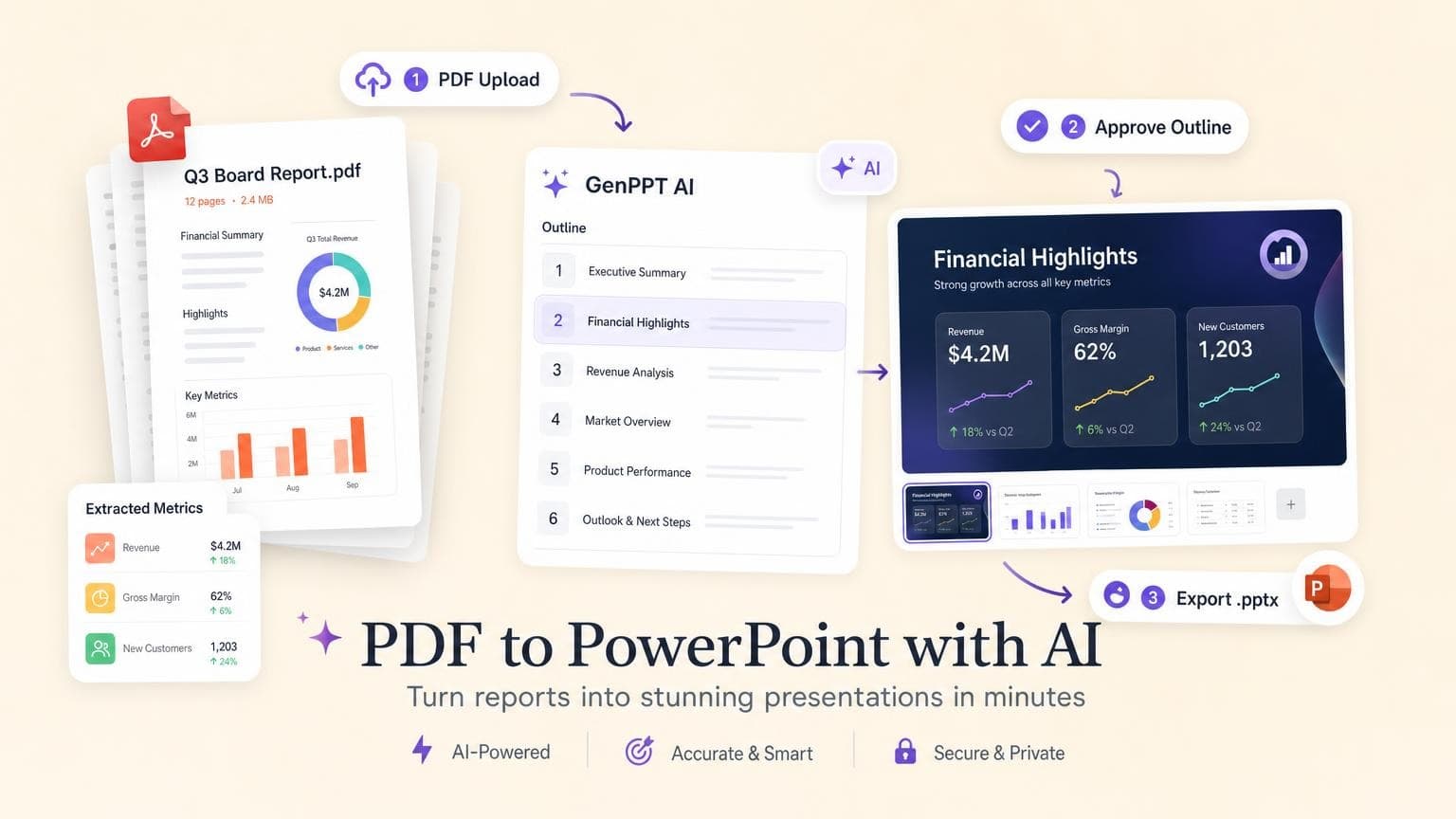
Upload your PDF to an AI presentation tool like GenPPT. The tool extracts and restructures the content into a slide outline. Approve that outline, pick a visual concept, generate full-slide visuals, then export a .pptx you can open in PowerPoint. Text-based PDFs you want summarized and redesigned work best. Pixel-perfect page copies need a traditional converter.
- Text-based PDFs convert cleanly; scanned PDFs need extra review because OCR can miss text - AI deck builders
restructure content for presenting; traditional converters copy pages as slides - Approve the outline before
generation so numbers, names, and slide order match your source - Budget 2–3 minutes for generation plus 10–15 minutes
to fact-check and test the export - GenPPT exports
.pptxand PDF; the free plan includes one deck per month with no credit card
PDF to PowerPoint: two different jobs
"PDF to PowerPoint" covers two different goals:
Pick a converter when you need each table and footnote in the same place as the PDF. Pick AI when you need a deck you can walk into a room and present.
For a broader AI workflow walkthrough, see How to Create a PowerPoint with AI.
Know your PDF type before you upload
Your PDF type determines what you get back.
Text-based PDFs (best fit)
Exports from Word, Google Docs, InDesign, or "Print to PDF" include a selectable text layer. AI tools read headings, paragraphs, bullet lists, and tables reliably.
Examples: quarterly reports, product briefs, proposal PDFs, whitepapers, lecture notes.
Scanned PDFs and image-only files
Whiteboard photos, fax scans, and print-then-scan files hold pixels, not selectable text. OCR guesses the words. Accuracy falls with low resolution, handwriting, and skewed pages.
What to expect: missing words, wrong numbers, broken table structure. Budget extra review time. Re-export from the original source instead of uploading a scan when you can.
Data-heavy reports
Dense tables, multi-page appendices, and 100+ page PDFs need a scoped upload. AI tools work better when you limit the input:
- Upload only the executive summary and key chapters
- Tell the tool which sections matter in your prompt
- Split very long files into two uploads if the tool has page limits
Tip: For appendix material, keep the PDF as a handout and let the deck cover the story.
AI transformation vs traditional conversion
Competitors like SlidesPilot, SlideSpeak, and Genspark also restructure PDFs into new slide narratives. Adobe Acrobat and PowerPoint's built-in PDF import stay closer to the original layout.
Compare tools in our Best AI PowerPoint Generators roundup.
How to convert a PDF to PowerPoint with GenPPT
GenPPT reads your PDF, drafts a slide outline, renders full-slide visuals, and exports PowerPoint or PDF.
Step 1: Upload your PDF
Go to /app/new. Attach your PDF along with a short prompt: audience, slide count, tone, and any sections to prioritize or skip.
GenPPT accepts PDF, Word, PowerPoint, Excel, CSV, plain text, and images.
Step 2: Approve the outline
GenPPT maps your PDF into a slide-by-slide outline. Edit titles, bullets, and order before GenPPT renders slide visuals. Catch missing metrics, wrong section order, or slides to merge here.
Step 3: Pick a visual concept
GenPPT shows a contact sheet of visual directions. Pick one for your audience: boardroom clean, bold launch creative, or data-forward report style.
Step 4: Generate, refine, and export
GenPPT renders the full deck as designed slide images. Regenerate individual slides in chat if copy or layout misses. Export .pptx or PDF when you are ready.
Prompt examples for PDF-to-deck
Copy these and fill in the brackets. Name the audience and slide count in each prompt.
Quarterly report to board deck
Turn the attached Q2 report PDF into a 10-slide board update.
Audience: executive team.
Include: revenue highlights, retention trend, top risks, and next-quarter priorities.
Preserve all dollar amounts and percentages exactly as written.
Skip the appendix.
Tone: direct, no jargon.
Whitepaper to sales enablement deck
Convert the attached whitepaper into an 8-slide sales deck for enterprise buyers.
Structure: problem, cost of status quo, our approach, proof points, customer outcomes, CTA.
Pull stats only from the document. Do not invent benchmarks.
Tone: confident but not hypey.
Training manual to onboarding slides
Turn this 40-page training PDF into a 12-slide onboarding deck for new hires.
Focus on: day-one setup, core workflows, common mistakes, and who to ask for help.
One process step per slide max.
Tone: clear and practical.
Scanned document (with caveats)
This PDF is a scan of handwritten meeting notes. Extract what you can into a 6-slide recap.
Flag anything you are unsure about in speaker notes.
Audience: project team.
Do not invent action items not present in the source.
Use case 1: Quarterly business report
Input: 24-page QBR PDF with revenue tables, churn data, and a written executive summary.
Prompt: "12-slide QBR for our SaaS board. Preserve all KPI numbers. Lead with executive summary, then retention, pipeline, risks, and ask."
Result: A data-forward deck with chart-style slides instead of pasted spreadsheet pages.
Takeaway: Approve the outline and confirm each metric from the PDF landed on the right slide before you pick a concept.
Use case 2: Product brief to investor deck
Input: 8-page product brief PDF with positioning, feature list, and pricing notes.
Prompt: "10-slide seed pitch from the attached brief. Audience: angel investors. Include problem, solution, traction placeholders, pricing slide, and ask."
Result: A pitch-style deck with one idea per slide.
Takeaway: Upload the brief instead of retyping it. GenPPT pulls section structure from the file.
See more examples on /examples.
Use case 3: Competitive analysis PDF to strategy deck
Input: 15-page competitive landscape report with market sizing and competitor profiles.
Prompt: "8-slide strategy deck for marketing leaders. Focus on market size, our differentiation, and three recommended moves. Skip individual competitor deep dives."
Result: A narrative deck sized for a 20-minute meeting.
Takeaway: Long PDFs work best when you tell the AI which sections to prioritize and which to leave out.
When a traditional converter is the better choice
Stick with Adobe Acrobat, Smallpdf, or PowerPoint's built-in PDF import when:
- You need every page reproduced exactly (contracts, compliance docs, signed forms)
- The PDF is already slide-sized (exported from PowerPoint or Keynote)
- You must preserve exact typography and layout from a designed report
- The file is mostly charts or diagrams that AI might misread
Use AI deck generation when:
- You need a deck for a live meeting
- The PDF is longer than your meeting (20 pages → 10 slides)
- You want designed visuals, not bullet walls copied from paragraphs
- You need a narrative arc the source document does not have
Common problems and troubleshooting
The deck has wrong numbers or names
AI misreads OCR text or paraphrases figures even from clean PDFs. Compare metrics against your source file during outline review. Fix numbers in the outline before you approve generation.
Scanned PDFs produce gibberish slides
OCR failed. Re-scan at higher resolution, export from the original app, or paste the text into a Word doc and upload that instead.
The deck is too long or too short
Adjust slide count in your prompt ("8 slides max") or edit the outline manually. Merge thin slides and split dense ones before approving.
Tables from the PDF look wrong
Complex tables often need manual cleanup after export. For critical data slides, regenerate in chat with specific instructions ("show this as a two-column comparison, not a chart") or keep the table in a PDF handout.
Export opens but slides look different in PowerPoint
GenPPT renders each slide as a designed image inside the .pptx. Layout stays stable, but you edit by regenerating slides in GenPPT, not by clicking text boxes in PowerPoint. Open the export before your meeting to confirm slide order and file size.
The tool skipped my appendix
GenPPT skips appendices because most decks do not need them. Add a slide in the outline step or attach a second PDF with those pages if you want that content.
Export QA checklist
Run through this before you send or present:
- Open the
.pptxin PowerPoint (or upload to Google Slides) and click through every slide - Spot-check numbers against the source PDF, especially dates, currency, and percentages
- Confirm slide order matches your story arc
- Check file size if you are emailing it (image-heavy decks can be large)
- Rehearse timing. Aim for 1–2 minutes per slide
- Export PDF as backup if the room might not have PowerPoint
Paid plans export watermark-free .pptx and PDF files. See current plans at /pricing.
GenPPT vs other PDF-to-PPT tools
For head-to-head comparisons with other AI deck builders, see our Gamma alternative, Beautiful.ai alternative, SlideSpeak alternative, best SlideSpeak alternatives, SlidesAI alternative, Decktopus alternative, and Tome AI alternative guides. For GenPPT-specific positioning, read our AI PowerPoint Generator page. For a broader market roundup, see Best AI PowerPoint Generators.
Frequently asked questions
Can AI convert a PDF to PowerPoint?
Yes. AI tools read your PDF, extract key sections, and build a new slide deck. You get a presentation for speaking, not a pixel copy of each PDF page.
Is PDF to PPT conversion free?
Many tools offer free trials or limited free tiers. GenPPT gives you one deck per month free with no credit card. Paid plans start with a $1 three-day trial, then $19/month for 20 decks and watermark-free export. See /pricing for current details.
Does it work on scanned PDFs?
Scanned files depend on OCR, which misses or misreads text. Text-based PDFs work better. Upload the original Word or Google Doc when you have one.
Will the PowerPoint have editable text boxes?
GenPPT exports full-slide visuals inside a .pptx file. Layout stays stable. Regenerate slides in GenPPT chat to change copy or layout. Plus AI and Copilot export native editable text in PowerPoint.
How is this different from Adobe or Smallpdf?
Traditional converters map PDF pages to slides, often as flat images. AI deck builders restructure content into a presentation narrative with new layouts and summarized copy.
Can ChatGPT convert PDF to PowerPoint?
ChatGPT can summarize a PDF if you paste or upload it, but it does not export a .pptx file. You still need a dedicated tool for layout and export. Read Can ChatGPT Summarize a PDF? for upload limits and Can ChatGPT Make PowerPoints? for the deck-export gap.
How long does PDF to PowerPoint take with AI?
Generation takes 2–3 minutes after you approve the outline. Budget 10–15 more minutes to review facts, fix weak slides, and test the export.
Can I upload Word docs instead of PDF?
Yes. GenPPT accepts PDF, Word, PowerPoint, Excel, CSV, text files, and images. Word docs often parse more cleanly than scanned PDFs.
Will my PDF data stay private?
GenPPT keeps uploaded files confidential and does not use them to train public models. See our Privacy Policy for details.
Start with one PDF today
Pick a report, brief, or whitepaper you already have. Upload it to GenPPT, approve the outline, pick a concept, and export PowerPoint.